CoreviaFlowCOREVIAFLOWDIGITAL PROJECT COMPANY Leave a request
EN UA RU
Automation & workspaceUS

Calendly integration & automation

Every booked meeting lands in your CRM and calendar on its own

Calendly lets clients pick a time for a call or demo from your calendar without the back-and-forth. We connect Calendly to your CRM, mailing tools and messengers so a new booking, a cancellation or a reschedule shows up where your team actually works: a deal gets created, the manager is notified, and a reminder goes out to the client.

What we connect

  • We agree on which events matter to you: a new booking, a cancellation, a reschedule, a routing form submission.
  • You create an access key in your Calendly account (Integrations section) or grant our connector access through Calendly's standard sign-in screen.
  • We check that your Calendly plan supports automatic event notifications — they are available on the Standard, Teams and Enterprise plans.
  • We subscribe to the events for the whole organization, so meetings of every team member arrive through one connection.
  • We map Calendly fields to your CRM: invitee name and email, event type, time, answers to booking questions, the host.
  • We verify each incoming notification against the secret key so only genuine Calendly data reaches your systems.
  • We run test bookings and cancellations together and hand over a short guide for your team.

Automation scenarios

01

Booking becomes a deal

Before the manager copied the client's name and time from a Calendly email into the CRM by hand and sometimes forgot.

After the moment a client books a demo, a deal with the contact, the meeting time and the answers from the booking form appears in the CRM.

02

Cancellations and reschedules update the pipeline

Before a client cancelled, but the deal stayed in the 'demo scheduled' stage and the manager prepared for a call that never happened.

After a cancellation moves the deal to a follow-up stage and posts a task; a reschedule simply updates the time.

03

Reminders and materials before the call

Before the manager sent a presentation and a reminder to each client manually, an hour before the call.

After after a booking the client automatically receives a message in the messenger or by email with the agenda and materials, and the manager gets a summary of who is coming.

04

Routing form leads that never booked

Before people filled in the qualification form, did not pick a time and disappeared without a trace.

After every submitted form creates a lead in the CRM even without a booking, and the sales team follows up with those who dropped off.

05

Team meeting statistics

Before to count how many demos each manager held and how many were cancelled, someone opened every calendar by hand.

After all bookings and cancellations across the team flow into one table, and the report builds itself.


How it works technically

For those who want to check: each point links to the official documentation page it comes from.

Limits

Automatic event notifications are available only on the Standard, Teams and Enterprise plans; on the basic plan the connection can read data but will not receive events on its own. Calendly limits the number of requests per user, so bulk reads are spread out in time. There is no way to reschedule a meeting from the outside — only cancel and reschedule links are available, which the client follows. If a receiving server stays down for a day, the subscription switches off and has to be re-created; we monitor this. An access key stops working when the account's login email, password or sign-in method changes.

Screenshots

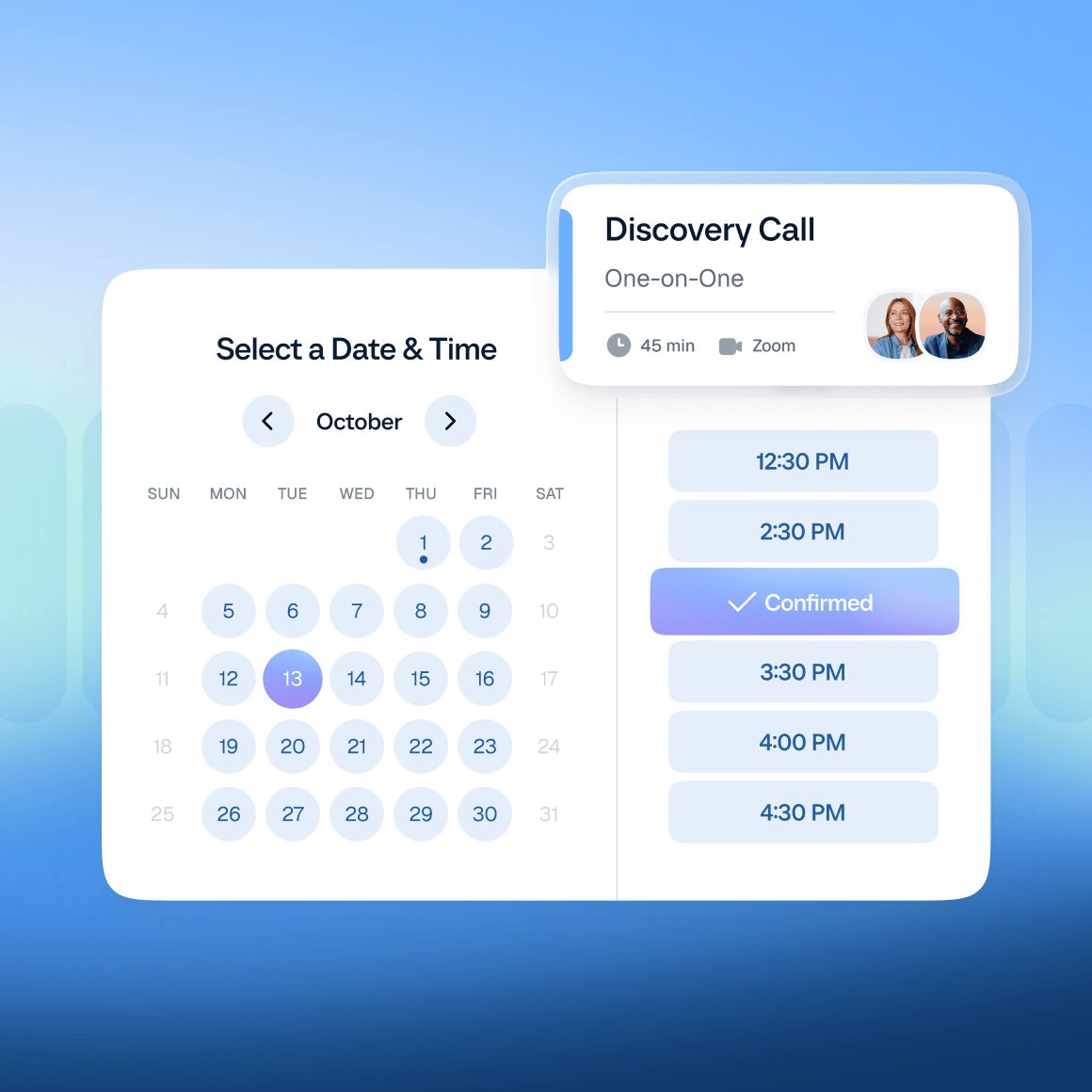
Calendly booking page: pick a date and a time slot for a meeting
This is what the client sees: a calendar with free days and time slots. Once a slot is confirmed, the CRM receives the meeting and the contact. Source: calendly.com ↗
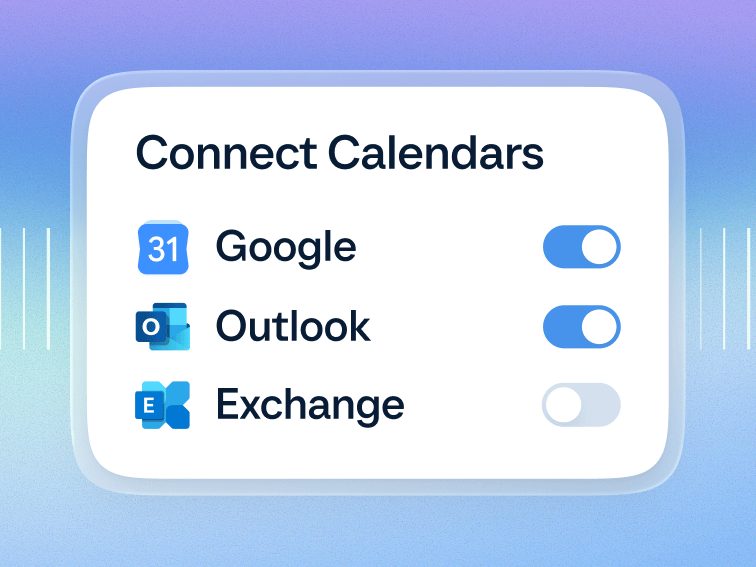
Calendly: connect Google, Outlook and Exchange calendars
Calendly checks busy time in the connected calendars, so only real free slots are offered; the CRM side only needs the resulting bookings. Source: calendly.com ↗

How to start

Three steps from a first message to work on your project.

  1. 01

    Leave a request

    Describe the task in the form — in text or by voice. Budget and timing are optional.

  2. 02

    We review and estimate

    A developer studies the brief, asks about anything unclear and sends an estimate.

  3. 03

    We start

    Once scope and price are agreed, the work begins.

or write to info@coreviaflow.space

Questions

Do we need a paid Calendly plan for this to work?
Reading data works on any plan. But for Calendly to notify your systems about bookings on its own, the account needs the Standard, Teams or Enterprise plan. We check this before starting.
Will meetings of all managers be captured, or only one account?
One subscription at the organization level covers bookings and cancellations of every team member. We set it up once, and new employees are picked up automatically.
What happens if the client reschedules the meeting?
Calendly reports a reschedule as a cancellation plus a new booking. We recognize this pair and simply update the time in the CRM instead of creating a duplicate deal.
Is it safe to give access to our Calendly account?
The connection uses an access key that you can revoke at any moment in your account. Every notification from Calendly is checked against a secret signature, so nobody can slip in fake bookings.

Tell us what needs to be connected

Describe the task in text or a voice message. We look at your setup and reply with a plan.